


After several failed logins, our server protection (Fail2Ban) temporarily blocks the IP address in question - usually because an email programme or smartphone is still using an old password. Your websites and mailboxes will then be inaccessible from that connection, but will remain accessible from all others. You can lift such blocks yourself in the customer area - without having to wait for support. To find out what lies behind an IP block and how to recognise it, read the article ‘Server not accessible / IP block’.
Step 1: Open the “IP blocks” tab
Go to My Products → Web Hosting and select your hosting plan. You’ll find the ‘IP blocks’ tab next to ‘Plan’ and ‘Security’. If your current IP address is blocked, the customer area will display this immediately: the tab will show an exclamation mark and the message “Your current IP … is blocked on this server” will appear at the top, along with the “Unblock now” button.
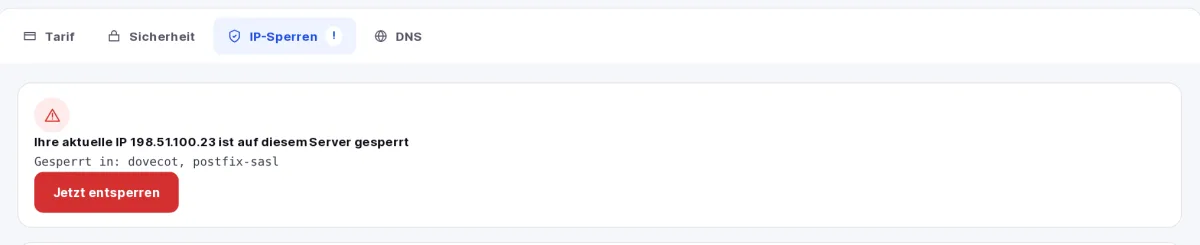
You can still access the customer area
The block only applies to the server on which your web hosting is hosted. The customer area runs on a different system - so you can still perform a login even if your IP address is blocked and lift the block.
Step 2: Check IP address
Under ‘Check IP block’, you can check any IP address, for example that of a member of staff. Select ‘Use my current IP’ to use your own address, then click ‘Check’. The result will show whether the address is blocked and for which services (e.g. dovecot for checking emails or postfix-sasl sending emails).
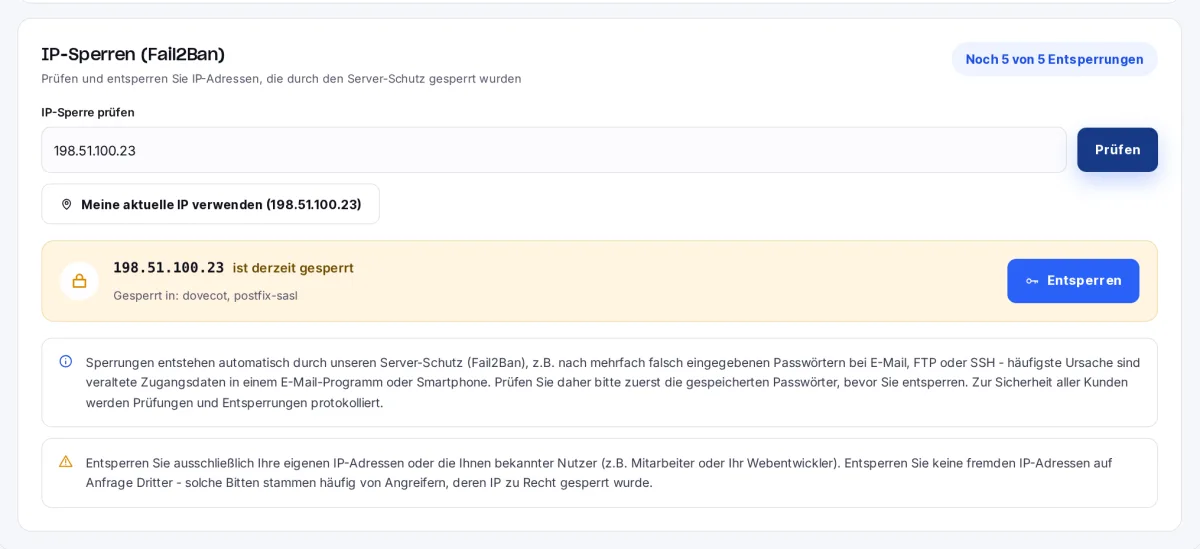
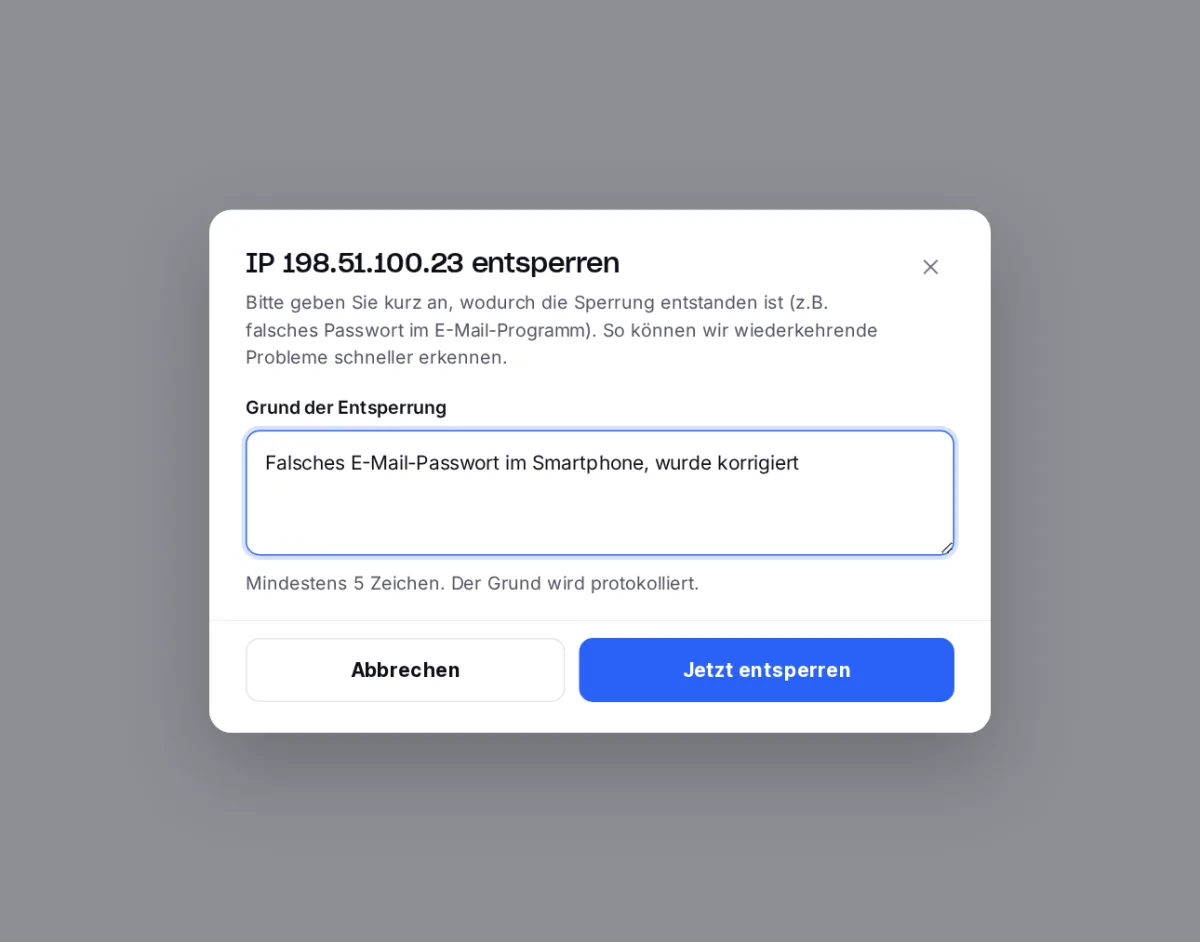
Step 3: Unlock and state the reason
Click on ‘Unlock’ or ‘Unlock now’. In the dialogue box, briefly explain why the lock was triggered - for example, ‘Incorrect email password on smartphone, has been corrected’ (at least 5 characters). Clicking ‘Unlock now’ will immediately remove the lock.
Tackle the root cause first
Before unlocking, make sure to update the password on all devices and programmes that access your hosting service - email programmes, smartphones, tablets and FTP programmes. Otherwise, the server’s security system will lock the address again after a short time.
Limits to protect all customers
To ensure that server protection cannot be circumvented, the following limits apply to self-unlocking:
- a maximum of 5 unblocks per hour per hosting account - you can see the remaining number in the top right-hand corner of the tab
- a maximum of 10 unblocking attempts per day for your customer account
- the same IP address may be used a maximum of 2 times within 24 hours - if it is blocked again after that, the underlying cause remains
Checks and unblocking are logged. If usage appears unusually frequent, we will temporarily disable the function; our support team will then be able to assist you.
Do not unblock any external IP addresses
Only unblock your own IP addresses or those of people you know, such as colleagues or your web developer. If a stranger asks you to unblock an IP address, they are often an attacker whose address has been blocked for good reason.