


You can upload files for your website to your web hosting via FTP; SSH is also available for more advanced tasks. Here you can find out what access options we offer, where to find your login details and how to change your password.
We offer the following access options
- FTPS (FTP over TLS, port 21) - encrypted file transfer, supported by all common FTP programmes. Our recommended option for FTP.
- SFTP (port 22) - encrypted file transfer via SSH.
- SSH (port 22) - encrypted command-line access, for example for Composer, WP-CLI or Git.
- FTP (port 21) - the classic, unencrypted version. It still works, but we recommend FTPS or SFTP because with plain FTP, passwords and files are transferred unencrypted.
Your login details
You will receive your login details by email when your web hosting is set up (“Your hosting account has been set up”). This email contains the server name, your username and your password. The username is the main user for your hosting account - it is used for the Control Panel, FTP and SSH.
You can also find your username and server name at any time in the customer area: Go to My Products → Web Hosting, select your hosting plan and switch to the Security tab. Use the copy icon to copy both details directly into your FTP programme.
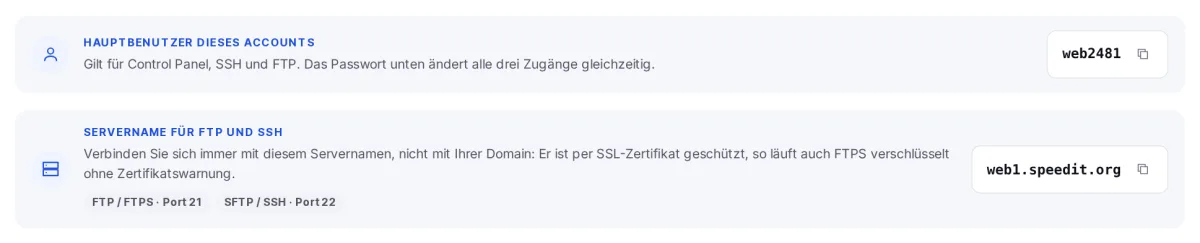
Always use the server name
Always connect using the server name (e.g. web1.speedit.org) rather than your own domain. The server name is protected by an SSL certificate: this allows your FTP programme to establish an encrypted FTPS connection without triggering any certificate warnings. Another advantage is that the connection will still work even if your domain does not yet point to our web hosting service, for example during a migration.
Connecting using an FTP programme
Here’s how to enter the details in FileZilla, for example (File → Server Manager → New Server):
- Log: FTP - File Transfer Protocol
- Server: Your server name, e.g.
web1.speedit.org- Port: 21 - Encryption: Require explicit FTP over TLS
- Connection type: Normal, then enter your username and password
For SFTP, select the ‘SFTP - SSH File Transfer Protocol’ log with port 22 instead.
Connection via SSH and SFTP
For SSH, connect using your username and the server name, for example:
ssh web2481@web1.speedit.org
To perform a login via SSH and SFTP, you need to store an SSH key. Our guides on ‘Generating an SSH key’, ‘Adding an SSH key’ and ‘Establishing an SSH connection’ show you how to generate it, store it and set up the connection.
Change password
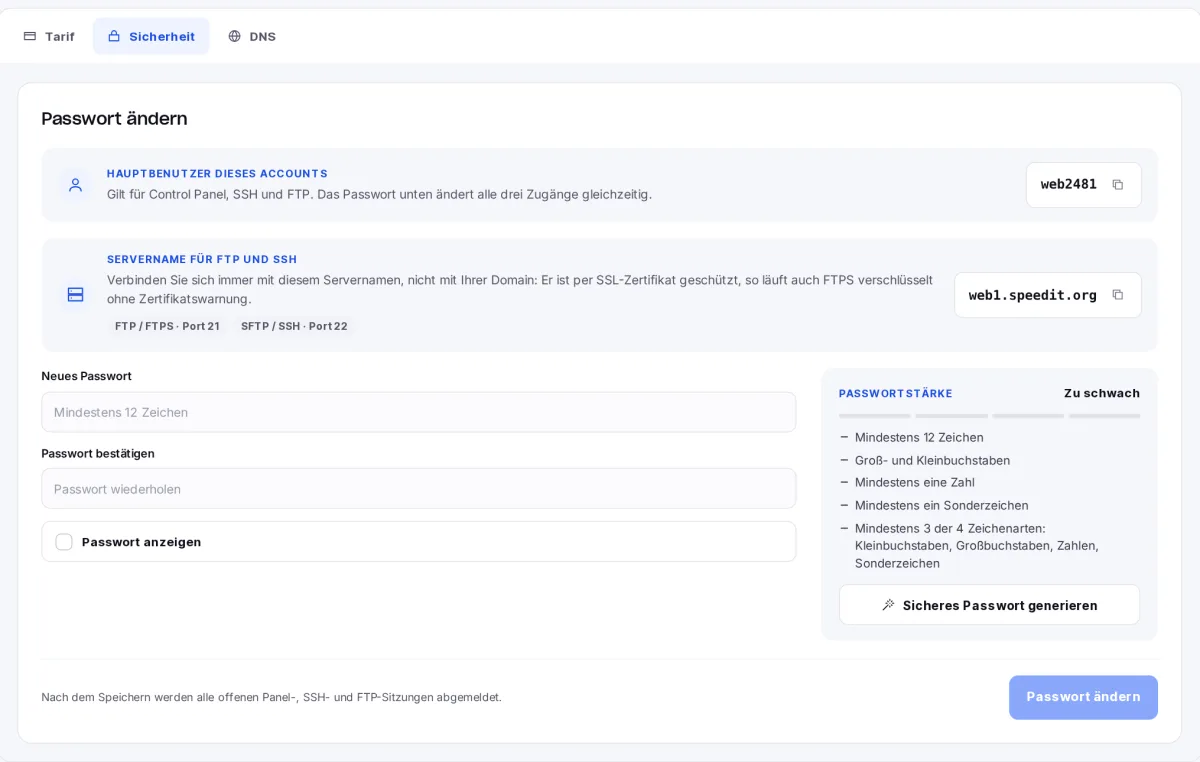
In the same ‘Security’ tab, set a new password for your main user:
- Enter a new password - or use ‘Generate a secure password’ to have one created for you.
- Confirm the password in the second field. The display on the right shows whether all requirements have been met.
- Click on ‘Change password’.
The new password takes effect immediately for the Control Panel, FTP and SSH. All open sessions will be logged out.
After changing your password: update your saved logins
Be sure to update the password in all programmes that have it saved, such as your FTP programme or deployment tools. Otherwise, repeated attempts to log in with the old password may trigger an automatic IP block.