


Passkeys replace your password with a cryptographic key stored on your device. You confirm your login using your fingerprint, facial recognition, your device PIN or a security key. Passkeys only work on our genuine website - fake login pages won’t work with them.
Add a passkey
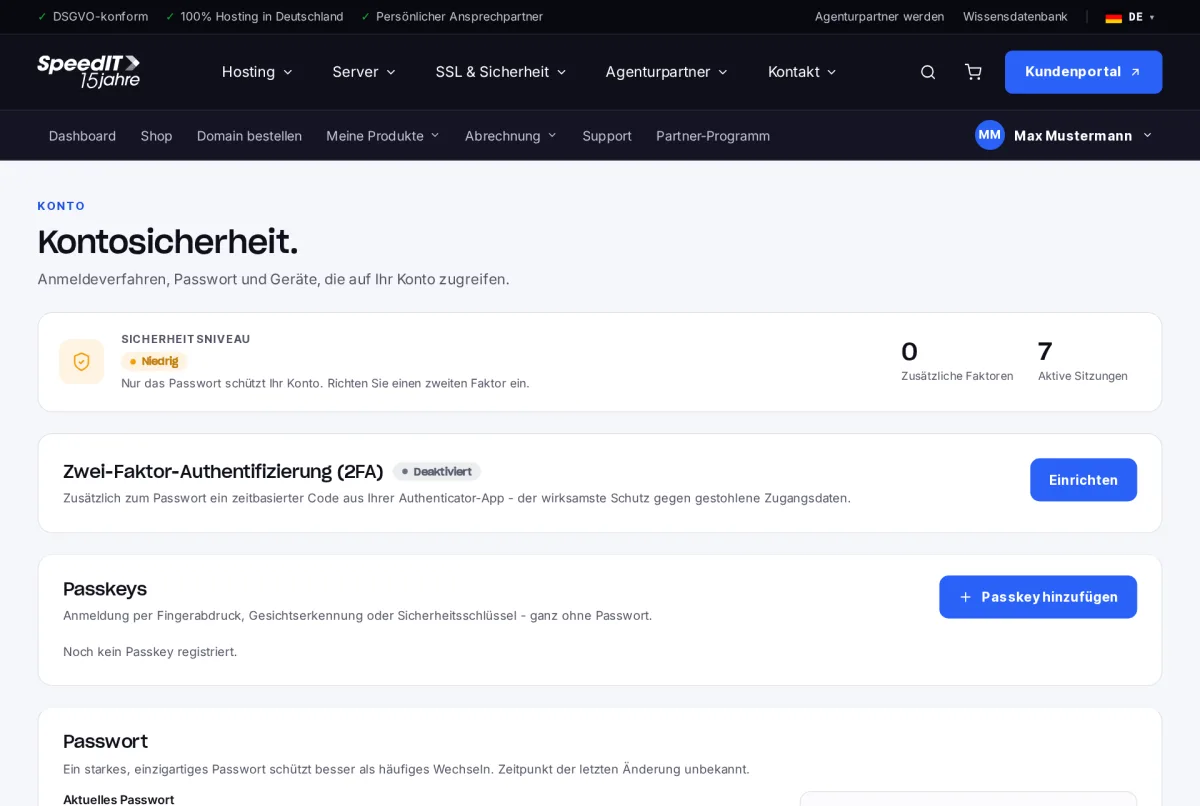
- Go to Your Name → Security.
- In the ‘Passkeys’ section, click Add passkey.
- Confirm the prompt on your device, for example using your fingerprint.
- The new passkey will appear in the list. Use the pencil icon to give it a name, for example ‘Office laptop’, so that you can recognise it later.
Sign in with Passkey
On the login page, click ‘Log in with Passkey’ and confirm the request from your device. You do not need to enter your email address or password.
Rename or remove a Passkey
You can remove devices you no longer use from the Passkey list by clicking the bin icon. You will then no longer be able to log in via that device.
Register multiple devices
Create a passkey on every device you use to log in - for example, your smartphone and laptop. This way, you’ll remain flexible even if one device is unavailable.
Which devices support passkeys?
The latest versions of Windows, macOS, iOS and Android, as well as the most common web browsers, support passkeys. Security keys such as YubiKey also work.
Will I still need my password then?
Your password will remain in place as a fallback. However, you can log in each day conveniently using your passkey.