


Change password
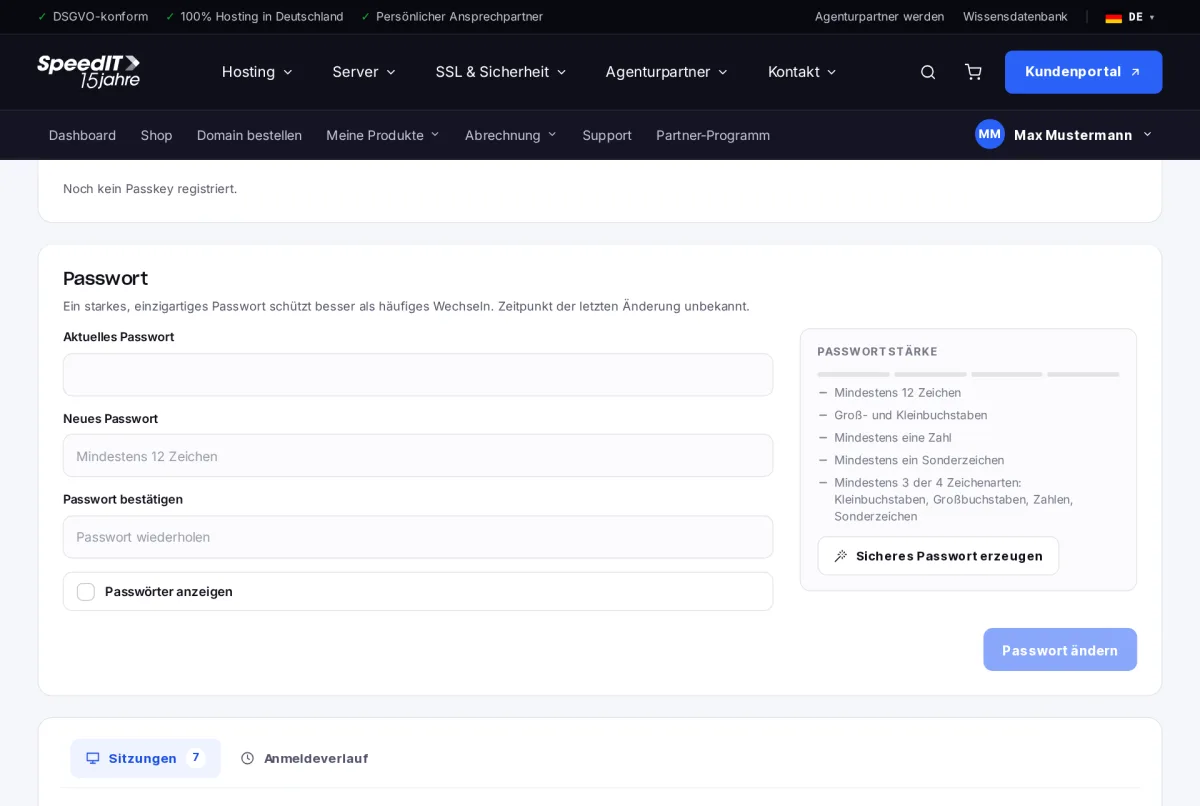
- Go to Your Name → Security and scroll down to the ‘Password’ section.
- Enter your current password.
- Choose a new password and confirm it. The ‘Password strength’ indicator shows which requirements have already been met.
- Click on ‘Change password’.
By selecting ‘Generate a secure password’, the customer portal will suggest a strong, random password for you.
Password requirements
- At least 12 characters
- At least 3 of the 4 character types: lower-case letters, upper-case letters, numbers, special characters
Sessions and login history
Under ‘Sessions’, you can see all the devices currently logged into your account - along with the browser, operating system, abbreviated IP address and last activity. You can end unknown sessions individually or by selecting ‘End all other sessions’. In the ‘Login history’ tab, you can view past logins.
Have you spotted an unknown device?
Log out immediately, change your password and enable two-factor authentication. Please contact our support team if necessary.
How often should I change my password?
A strong, unique password does not need to be changed regularly. Change it if you suspect that it has been compromised.