


You decide how often you pay for a contract. Many products are available on a monthly, quarterly, half-yearly or annual basis. The longer the payment interval, the cheaper it usually is - for example, with an annual payment, you save 10 per cent compared with monthly payments.
Step 1: Open the contract
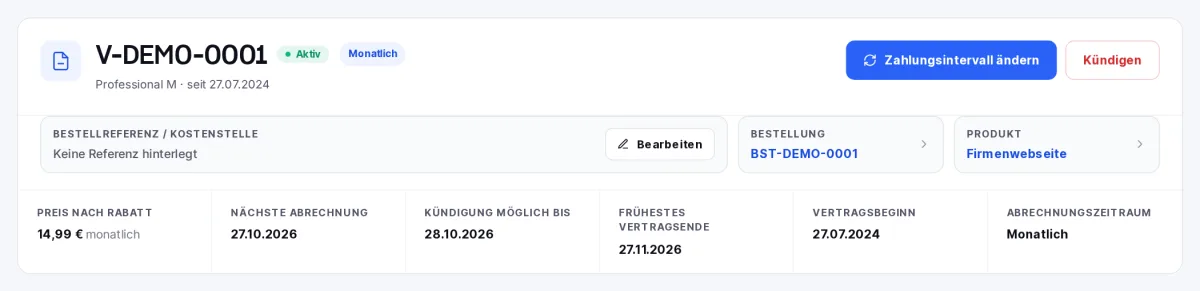
Go to the menu: Billing → Contracts and select the contract you want. Alternatively, you can access this from your hosting dashboard via ‘View contract’. In the top right-hand corner, you’ll find the ‘Change payment interval’ button; your current interval is shown next to the contract number and under ‘billing period’.
Can’t see the button?
The button only appears if the product offers multiple intervals, the contract is active, and it has neither been subject to a cancellation nor has a scheduled interval change already in place.
Step 2: Select a new interval
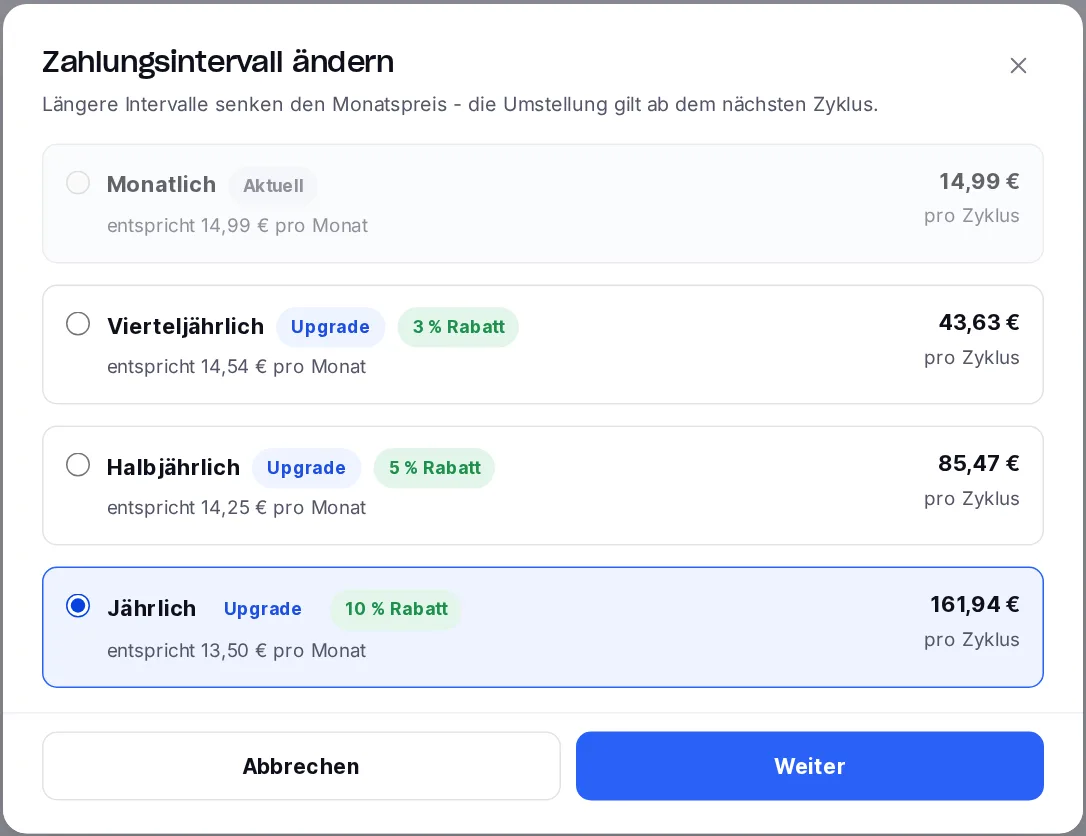
In the dialogue box, you will see all available intervals, along with the price per cycle and the converted monthly price. Discounts are highlighted in green. An interval longer than your current one is marked as an upgrade; a shorter one as a downgrade. Select the interval you want, for example ‘Annual’, and click ‘Next’.
Step 3: Check the preview
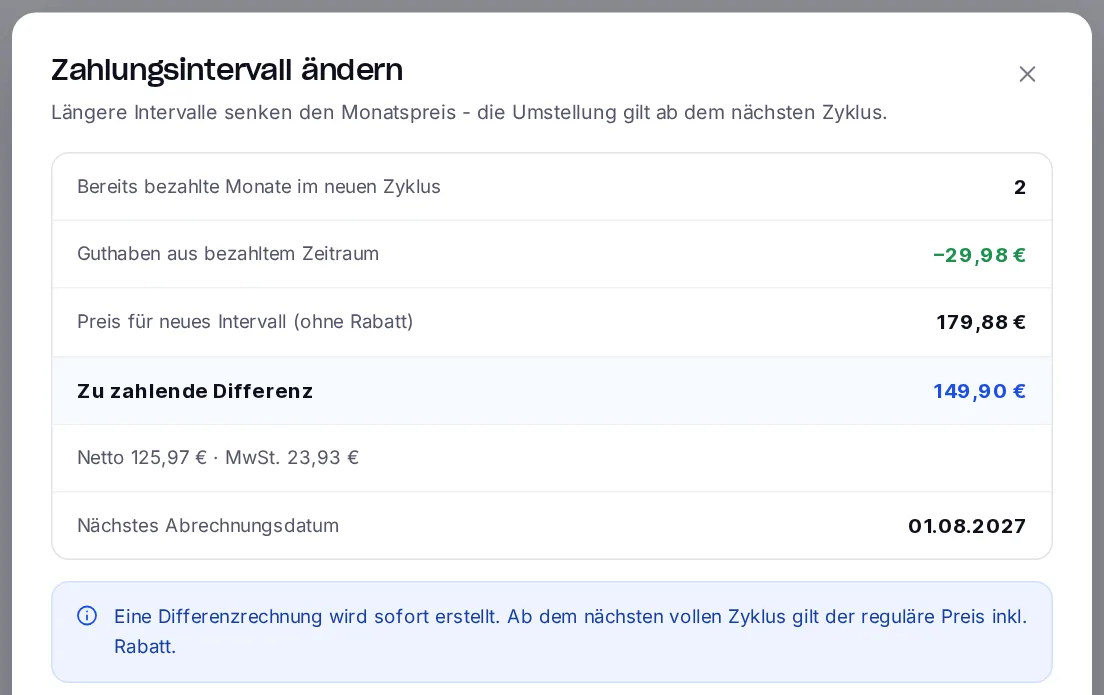
The preview shows exactly what the change will mean for you. When switching to a longer billing cycle (for example, from monthly to annual), the following applies:
- Any months you have already paid for will be added to your credit balance.
- You will pay the difference for the new billing cycle. An invoice for the difference will be issued immediately - for customers on a consolidated billing plan, the amount will be included in the consolidated invoice.
- The difference is calculated without the term discount. From the next full cycle onwards, the regular, discounted price applies.
- The next billing date will be reset to align with the new billing interval.
Step 4: Confirm the minimum term and complete the switch
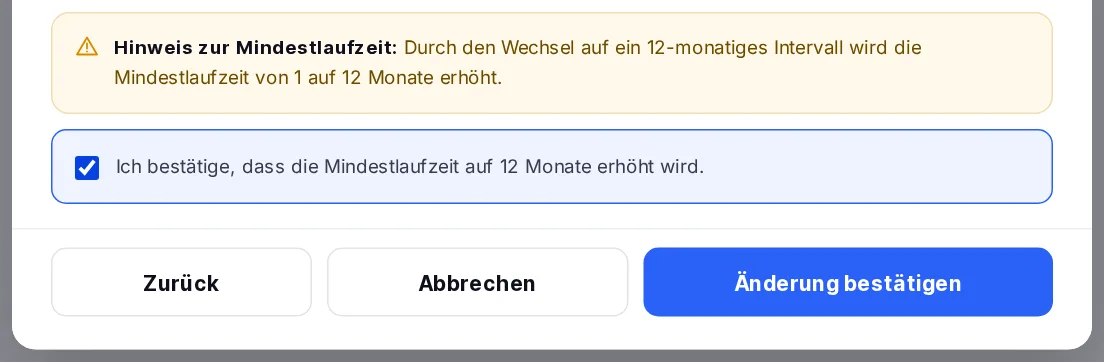
If the new interval is longer than the previous minimum term of your contract, the minimum term will increase accordingly - to 12 months if you pay annually. The preview will highlight this; confirm this by ticking the box and then click on ‘Confirm change’. You can then proceed directly to the difference calculation or return to the contract.
Changing to a shorter billing cycle
If you switch to a shorter billing cycle (for example, from annual to monthly), the change will take effect on the next billing date. The period for which payment has already been made will continue as normal; no refund will be issued. Until then, your contract will display the message ‘Planned interval change’ along with the date of the change. As long as the change has not yet taken effect, you can cancel it there by selecting ‘Cancel planned change’.
Tip: pay annually and save money
With the annual payment option, you save 10 per cent on many products and receive just one invoice a year. If you have a payment method on file, the invoice will be settled automatically.