


Easily migrate email accounts using the IMAPSync web interface
If you wish to transfer your emails from an existing email account to a new account - for example, as part of a server change or a switch to a different provider - you can do so very easily using the IMAPSync web interface we provide.
In this guide, we’ll show you step by step how to carry out the migration yourself, safely and securely.
Prerequisites
To start the email migration, you will need:
- Login details (username and password) for both mailboxes (source and destination accounts)
- The IMAP server addresses of the old and new email systems
- A stable internet connection
- The URL to the web interface provided by SpeedIT (e.g. please refer to your setup email for the specific address or ask our support team)
Security notice
The web interface is based on the official version of IMAPSync (lamiral.info) and operates entirely over an encrypted HTTPS connection. Your login details are used solely for the purpose of carrying out the synchronisation and are not stored.
Step-by-step guide
1. Accessing the web interface
Open the URL you have received from us in your browser.
💡 Tip: We recommend using Google Chrome, Firefox or Microsoft Edge for the best viewing experience.
2. Enter the source mailbox (old email address)
In the ‘IMAP Source Mailbox’ section, fill in the following fields:
- IMAP Host: The IMAP address of the old server (e.g.
imap.altanbieter.de) - Username: Your old email address (e.g.
vorname@altanbieter.de) - Password: The password for your old email account
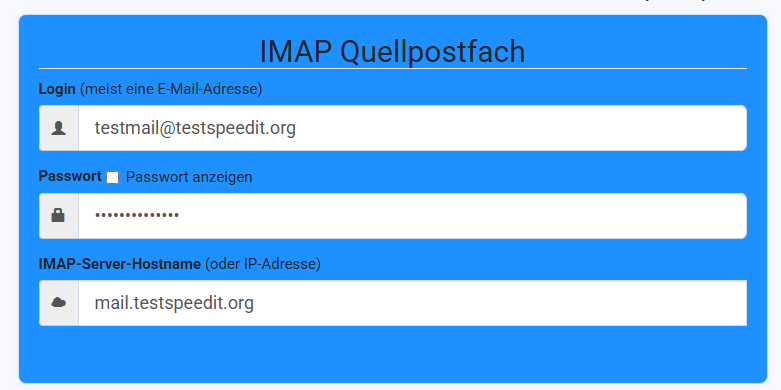 IMAPsync - Source server
3. Enter the destination mailbox (new email address)
In the “Destination (new mailbox)” section, enter the login details for the new mailbox:
- IMAP Host: The IMAP address of the new server (e.g.
imap.speedit.org) - Username: Your new email address (e.g.
vorname@ihredomain.de) - Password: The password for the new email account
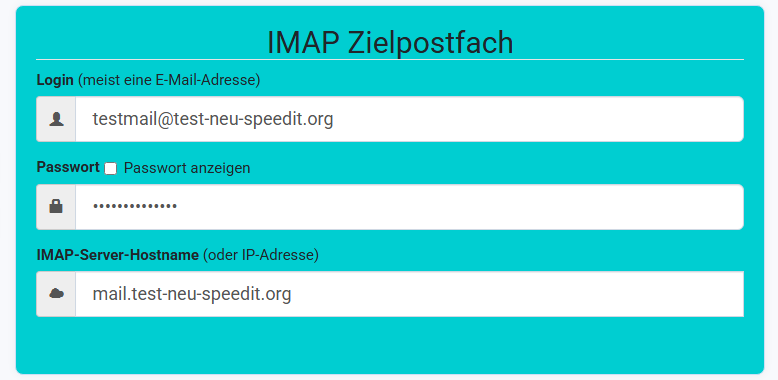
4. Further settings
The default settings are sufficient for most scenarios.
However, you can optionally tick the following boxes:
- "Test run - No synchronisation" -> Runs a test and shows in the log what it would do. However, it does not carry out any actual synchronisation.
- "Check login details" -> Checks whether the login details for the source and destination servers are correct.
- "Show folder sizes only" -> Displays the sizes of the folders on the source server.
- "Create folders only" -> Creates the folder structure from the source server on the destination server, but does not synchronise any emails!
5. Start synchronisation
Click on “Synchronise or synchronise again”
to start the copying process.
The progress is displayed in a log window.
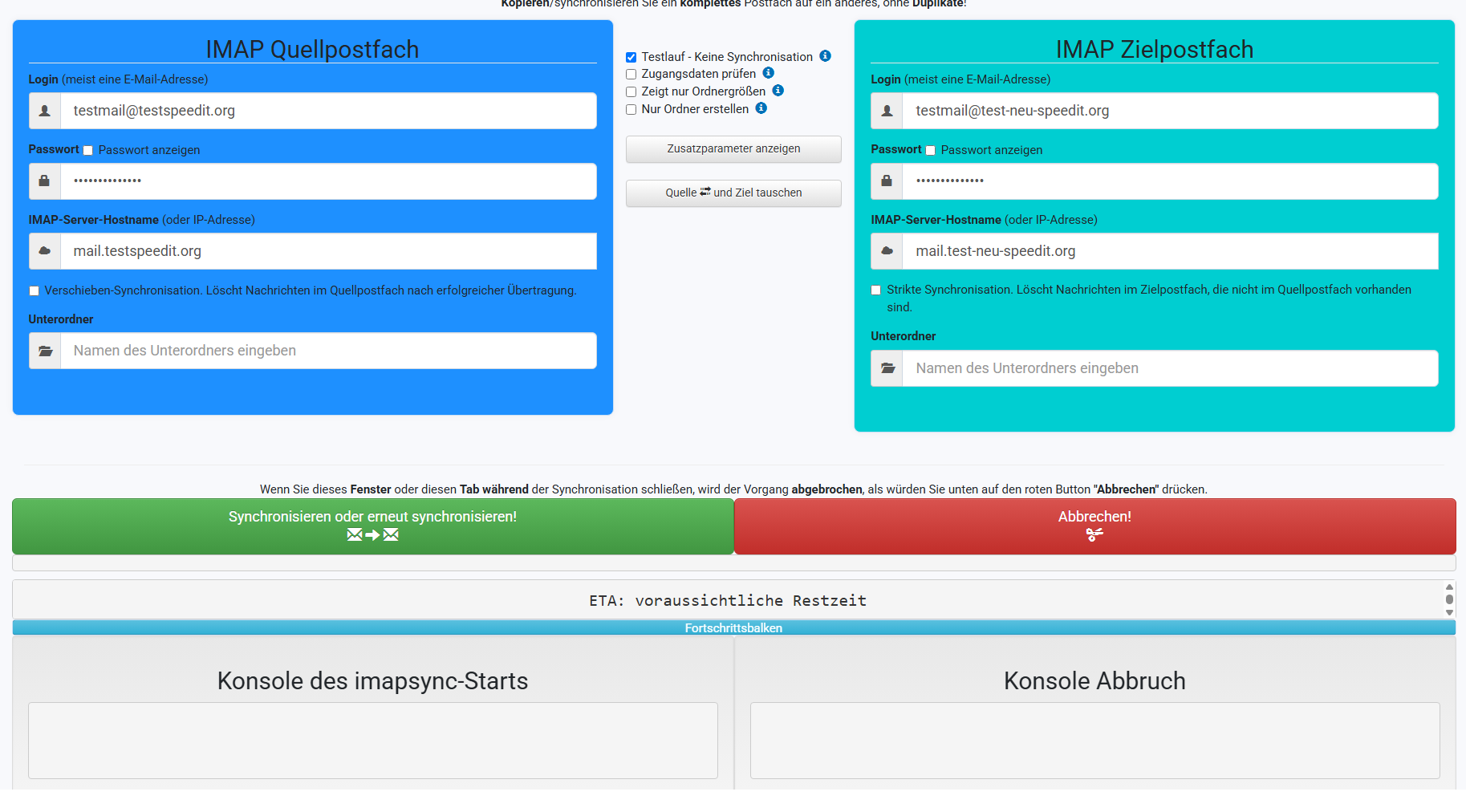
Check the result
Once complete, you can see in the log whether the synchronisation was successful. Then open your new email account via webmail or an email programme and check whether:
- All folders have been transferred correctly
- All emails are present in full
Frequently Asked Questions (FAQ)
Are emails deleted?
No -> Not by default! IMAPSync copies the emails from the old account to the new one. No emails are deleted, neither from the source nor the destination inbox.
However, you can optionally enable deletion under the ‘Show additional parameters’ option!
There are two options for this:
- Strict synchronisation. Deletes messages in the destination inbox that are not present in the source inbox.
- Move synchronisation. Deletes messages from the source inbox after they have been successfully transferred.
Can I carry out the process more than once?
Yes, the migration can be repeated as often as you like. Emails that have already been transferred will be skipped.
What should I do if I encounter login errors?
Please check:
- Whether your username and password are correct
- Whether the IMAP server has been entered correctly
- Whether any special characters in the password may have been copied incorrectly
If in doubt, please feel free to contact our support team.